Apr 21 2021

My Sweet Setup: Drafts

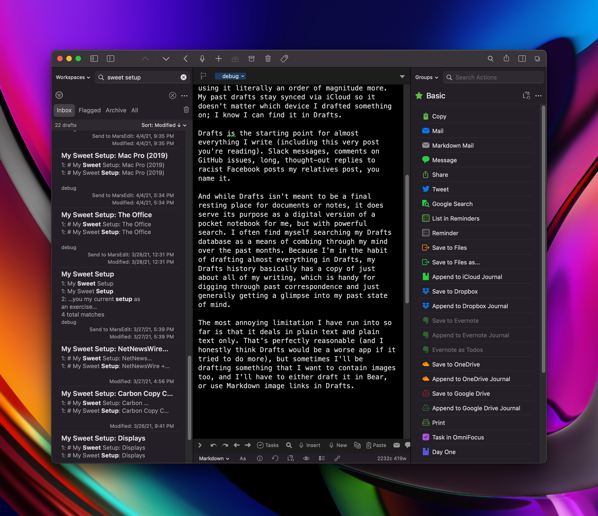
a screenshot of the Drafts app editing this very post

I didn’t realize there was a place in my life for an app like Drafts until after I learned of its existence. And while I’ve mostly focused on why I love the things in this series of posts, I think for Drafts I need to explain its whole deal.

Drafts started off as an iOS only app. The premise of Drafts is simple: you open it up to a blank screen that you can type text into, and it offers a very powerful interface for processing this text and sending it off to some destination app.

If I need to write something, I go straight to Drafts. No digging around for just the right app; I just open Drafts. Even if I know it’s going to be a text message or an email, I start off in Drafts anyway, because in Drafts I am free to edit and I am not afraid of accidentally sending the message first.

I used Drafts a decent amount when it was iOS only, but when it became a Mac app I started using it literally an order of magnitude more. My past drafts stay synced via iCloud so it doesn’t matter which device I drafted something on; I know I can find it in Drafts.

Drafts is the starting point for almost everything I write (including this very post you’re reading). Slack messages, comments on GitHub issues, long, thought-out replies to racist Facebook posts my relatives post, you name it.

And while Drafts isn’t meant to be a final resting place for documents or notes, it does serve its purpose as a digital version of a pocket notebook for me, but with powerful search. I often find myself searching my Drafts database as a means of combing through my mind over the past months. Because I’m in the habit of drafting almost everything in Drafts, my Drafts history basically has a copy of just about all of my writing, which is handy for digging through past correspondence and just generally getting a glimpse into my past state of mind.

The most annoying limitation I have run into so far is that it deals in plain text and plain text only. That’s perfectly reasonable (and I honestly think Drafts would be a worse app if it tried to do more), but sometimes I’ll be drafting something that I want to contain images too, and I’ll have to either draft it in Bear, or use Markdown image links in Drafts.


Apr 20 2021

Thoughts From Today’s Apple Event

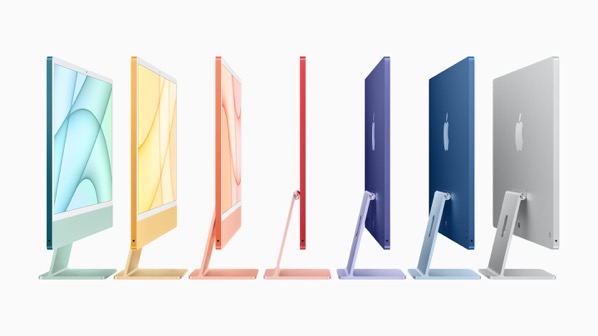
new 24 inch imacs

Apple’s pre-recorded presentations have gotten so tight it’s kind of wild to think of the number of things that got announced in just an hour.

Apple Card Announcements

This was a nice little surprise. I still think there’s some bullshit in the recent news that cleared the Apple Card of sexist behavior (when the rules are influenced by sexism but you followed the rules, it doesn’t mean you aren’t sexist). However, the added ability for multiple family members to share a card and build credit history is nice. I hope Apple keeps investing in new features for Apple Card; it’s an area that a company with Apple’s pull can really do a lot of good.

Podcasts

I’m not surprised Apple’s making the moves it’s making with podcasts, but I’m sad that big companies are continuing to try to dismantle the open podcast ecosystem by pushing people to use their own proprietary apps.

I’m not worried about the podcasts I listen to; they tend to be made by people who care about being independent and will stay that way, but I worry a lot about truly open podcasts as a market shrinking. Soon podcasts might look the way streaming TV looks now, where you need five different services just to watch all your shows. That sucks.

That said, I do like the thought that this might get more people in the habit of paying for podcasts. While I understand not every podcast listener has the money to pay for podcasts, I think that direct financial support is a great way to make more sustainable podcasts.

New Apple TV Hardware

Just some bullet point thoughts on this

  • Finally!
  • Putting in A12 chips is a little chintzy. Hopefully they can be clocked a little higher to make up for their age?
  • Redesigned remote: another resounding “Finally!” This remote appears to address some longstanding annoyances while ignoring others. They kept it flat and symmetrical so it’s difficult to tell by feel whether you’re holding it right side up. Also, why not put in a U1 chip+tiny speaker for Find My support?
  • The color calibration thing is the kind of small annoyance that only Apple would obsess over, and using the iPhone as the calibration device is a really clever use of Apple’s vertical integration.

AirTags

The rumor mill’s been talking about these for years, so it’s good to see they’re actually real.

The concept is cool enough, but I’d have gotten way more value out of Apple rolling out meaningful Find My support to its whole accessory ecosystem. My AirPods case would greatly benefit from Find My support, as would my Pencil and my Apple TV remote, all things I routinely lose.

The form factor of the AirTags feels super limiting. You can hang it from your keys or luggage, but what else can it go on? And even if they were tiny and versatile enough that they could go on anything, they’re still pricey enough that I wouldn’t put them on tons of stuff.

I like seeing Apple is continuing to invest in Find My as a whole ecosystem though.

iMac

I’m still partially holding my breath to see what Apple does with higher end computers (in the meantime I’m sitting pretty with my Mac Pro so don’t worry about me). So far, they’ve only been making Macs with an M1 chip. The M1 Macs are great machines; they’re speedy and power-efficient, but they are still the low end.

These iMacs announced today are the first Apple Silicon Macs to have a new hardware design, and I’m really excited to see Apple finally evolve the iMac’s industrial design.

Seriously, these iMacs are just beautiful. It’s not just that they have new colors, but they have a beautiful new industrial design and they are so thin (and there’s no bulge anymore that the previous-gen iMacs had).

I hope that the higher-end iMacs get the same color treatment but I have a feeling pro users will be stuck with a muted color palette.

I can appreciate that the M1 machines have a 16 gigabyte memory limit. I’m not crazy about that limit, but Apple’s M1 machines are incredible even with that limitation. But offering iMacs in an 8 GB configuration feels criminal to me. Modern applications command more memory, and Apple can bullshit us all they want about how the unified memory architecture is better (and there is absolutely truth to it) but no amount of memory unification makes 8 gigs enough memory, and these base level iMacs will have a shorter life for it.

That said, these latest iMacs continue the iMac’s reputation of being the Mac-iest Mac. You can look at an iMac and see the soul of the original 128k Mac shine through. The new industrial design is fresh and will carry the iMac well into this decade.

iPad Pro

I’ve been hoping to see iPadOS become more desktop-like and after seeing the new iPad Pro announced today, I feel like Apple’s really teeing itself up for that too.

When you buy an iPad Pro, you’re buying Mac hardware (and as it would turn out, you’re also paying Mac prices). You’re getting the full M1 processor like the Macs have. That gives you a real USB 4/Thunderbolt port, which lets you plug iPad into a 6k Pro Display XDR (still with mirroring, but I bet we’ll see that change soon). Apple’s even starting to talk about the amount of memory in the iPad Pro, something it’s never done with iPads before.

It’s become clear that Apple thinks of iPads as a full-blown personal computer and they’re giving it the kind of hardware that they feel a personal computer deserves.

I’d like to have seen it get the headphone jack back (hell, even the new iMacs get a headphone jack).

Also, the XDR display in the 12.9 inch iPad Pro looks like a remarkable technical feat. The 32 inch Pro Display XDR is an impressive display, but it uses just 72 different LEDs to create local dimming zones. That means that for images that are mostly a black background with small lit objects, the Pro Display XDR has serious blooming problems. The 12.9" iPad’s display has thousands of LEDs to light the screen, which greatly reduces the problem. I bet it will look stunning in person.

I’ll be buying an iPad Pro, but as much as I love RAM I might struggle to justify the sucker punch of the price tag for a model with 16 gigs of memory.
Apr 20 2021

My Sweet Setup: Bose QC35 Headphones

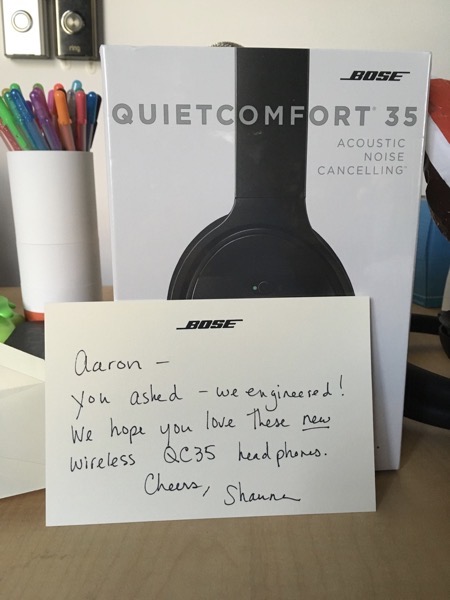
I got my Bose QC35s thanks to a cranky tweet to Bose at a really opportune moment, I happened to get the Bose QC35s for free from them back in 2016:

a pair of QC35s with a nice card from Bose.

I still have these headphones today, and aside from some replaced earcups, they still work perfectly.

AirPods are a popular choice of wireless headphone nowadays (and of course I own some of those too), but the Bose headphones remain spectacular. I bought my first pair of AirPods years after I got my QC35s, and by 2019 they were no longer holding a decent charge. Both QC35s I own continue to give me hours and hours of battery life with no signs of the battery aging. And while the AirPods will periodically do finicky things like only having audio come out of one ear, or where I have to play a game of connection whack-a-mole, the Bose headphones always connect when I flip the switch to turn them on. They’ll even connect to more than one device. If you need to adjust the volume, you can do so with nice tactile physical buttons.

These aren’t Bose’s latest flagship headphones; if you want the latest and greatest get the Bose Noise Cancelling Headphones 700. I haven’t personally tried them (their industrial design seems odd at first glance) but they look perfectly nice. But Bose still sells the trusty QC35s today, and they can be had for well under $300 if you look in the right place.

If you need a pair of no-nonsense over-the-ear headphones that won’t break the bank, you’ll be well served by QC35s. They’re perfect if you’re looking for some headphones that are noise canceling, wireless, and just plain nice.


Apr 19 2021

My Sweet Setup: Dropbox

I’ve used Dropbox since its beta days in 2008. As soon as I saw that it magically offered the ability for me to have a folder that would be magically in sync on all of my computers, no matter what, I wanted it.

In the early days of Dropbox, the only way you could get more space was by inviting others to use Dropbox as well. I invited a bunch of friends to get gigabytes of synced space, and when they started offering paid plans I quickly hopped on board, getting boosted to a then-expansive 20 gigabytes of cloud storage. That’s laughable compared to the terabytes Dropbox offers now.

And indeed, Dropbox is damn near perfect at that. I save a file in my Dropbox folder, and it quickly syncs up to the cloud and propagates to my Dropbox folder on all other computers. Dropbox has since then built a number of other features around this, but their core file sync working so perfectly is their fortress. I’ve never had Dropbox lose data on me.

Dropbox is core infrastructure for me; it’s like my home folder, but more omnipresent.

It’s also handy that Dropbox integrates with just about everything, so I’m not just limited to file sync. I can use it with IFTTT and a Hazel script on my computer to automatically archive all my liked tweets as they come in. When I scan things, my scanner sends them straight to my Dropbox account right over Wi-Fi. And my beloved Alfred uses Dropbox to sync its settings, making Dropbox one of the first things I install on a Mac.

Dropbox is also just a great default place for me to save files. I have space for them on Dropbox, and by sticking a file in Dropbox, I get backups on multiple computers and an offsite backup, automatically. Not only that, but Dropbox keeps my deleted files indefinitely and will save previous versions of files, handy in case I make a change I didn’t mean to make.

Dropbox isn’t perfect nowadays. As a corporation they seem not content with having loyal, paying customers like me, and I get the sense they are constantly trying to dream up the next big thing that will launch them into a new growth phase. Their newest desktop application less like the creation of someone trying to make something useful, and more like something a product manager dreamed up to juice up engagement numbers for Dropbox, or to find ways for Dropbox to insert itself into things as intermediary.

And some of their newer features just aren’t as good as their core functionality. Smart Sync in particular is just awful and I have it completely disabled on my account (instead I use Selective Sync, which has me explicitly choose which files I want to sync).

The thing I ultimately love about Dropbox is that it nails the fundamentals. Sure, they’ve had their head in other new features, but they’ve kept core functionality working. I keep Dropbox around because unlike Apple, whose attention is spread super thin because they do so much, Dropbox’s file syncing is what pays their bills, and I trust that they are going to keep things working.


Apr 18 2021

real money casino app no deposit apk

screenshot of OmniFocus appThe largest benefit to using a to-do/task manager like OmniFocus isn’t the satisfaction of staying on top of tasks, or even the reward of getting those tasks done. It’s the feeling of relief you get to feel when you know you have a lot of tasks on your mind, and you dump all of those tasks out of your mind and into OmniFocus and get them nice and categorized.

That feeling is incredible because you can then replace that nagging feeling of “is there something I’m forgetting?” that’s been keeping you awake at night with a calm assured feeling that everything is taken care of because you know it’s in OmniFocus and you can trust that you’ll be told to deal with it right when you need to.

I happened upon OmniFocus in college shortly after it first was released, and it was just what the doctor ordered. I was just overwhelmed with tasks. I had schoolwork from multiple classes, I had music lessons and musical ensembles I participated in, and I had two jobs. I was in desperate need of something to keep track of all of my commitments, and OmniFocus was the right tool for the job.

Since college, my need for OmniFocus waxes and wanes, but I always like to keep coming back to it because every time I start using it again, I am reminded of that feeling of serenity I get when I start using it again.

OmniFocus in particular is a heavyweight system for tasks. If you just have a handful of to-do items and maybe a few different lists, it might not make sense for you, and you might be better served just by the built-in Reminders app or one of the many other simpler to-do list apps out there. But if you are a GTD practitioner, you might enjoy OmniFocus, as it was originally purpose-made for GTD (its newest version replaces contexts with tags, which is kind of cool because you can pick more than one tag now).

I’m especially fond of OmniFocus’s Forecast view; it provides me with a unified view of my due tasks and my calendar, which can be a great way to get a plan for what my day is going to look like.

If you do decide you want to try OmniFocus, spend some time with it, and I also recommend checking out usa online casino ndb july bdays, which regularly interviews OmniFocus users (and users of other Omni apps). You can get to learn how they fit OmniFocus into their lives and get a good sense of how to effectively get the most out of it.


Apr 17 2021

My Sweet Setup: MindNode

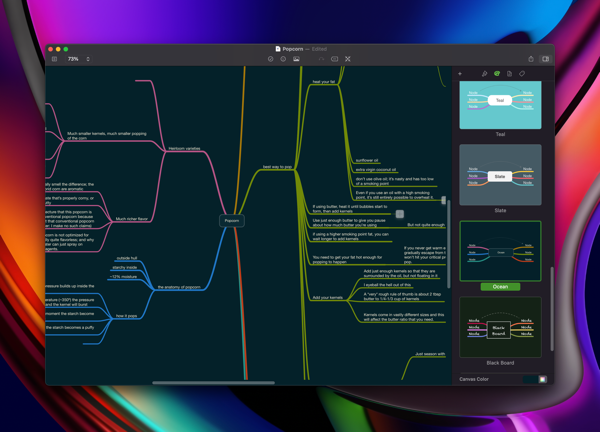
screenshot of MindNode
It’s a niche use case but when I need it, nothing is better than a mind map, and MindNode is a fantastic tool for building them.

If you’ve never used mind maps before, I highly recommend them. At their core they’re just an outline, but they’re presented on an infinite canvas. When presented like this, it’s trivial to segue from one idea to the next and form ideas that you didn’t realize you had in you.

I love to use a mind map when I am working on a talk, presentation, or blog post about a topic, and I want to explore what I know and what I want to talk about. I can then traverse the mind map quickly and add structure to the document I’m producing.

MindNode works really nicely and has simple keyboard shortcuts. It also has an iOS app that works seamlessly with the Mac app, and when you save your documents in iCloud they’re both easily accessible from both your Macs and iOS devices, handy when you are working on building out a mind map over a long period of time.

And when you want to share your mind map, MindNode offers a ton of options. You can export in a variety of textual formats, a giant PNG, or even a PDF.


Apr 16 2021

My Sweet Setup: CleanShot X

screenshot of CleanShot X, a screenshotting app. I see the irony.
When macOS Mojave introduced an overhaul to their screenshots feature to make it similar to how iOS does screenshots, I was really excited initially and pretty quickly gave up on it; it’s weird to use and doesn’t really support drag and drop.

Last year I stumbled across CleanShot X, which is like if Skitch and the macOS screenshot feature had a baby.

I always loved how Skitch made it easy to quickly mark up a screenshot and then drag and drop it somewhere with a prominent handle on the window. I was initially excited when Evernote bought Skitch then brought it into the Evernote fold, but years of neglect and poor performance soured me to it.

CleanShot works beautifully, and I have it saving screenshots into a folder in Dropbox, making it easy to share an HTTP link to the file. I then index these screenshots in DEVONthink, giving me a rough equivalent to Skitch’s Evernote-integrated features, but since each component is a best of breed tool, they all work seamlessly together and everything is fast.

CleanShot doesn’t just stop with screenshots; you can also do simple screen recordings that can be MP4 files or gifs.

I take screenshots probably about a dozen times a day on a given work day and CleanShot is just perfect.


Apr 15 2021

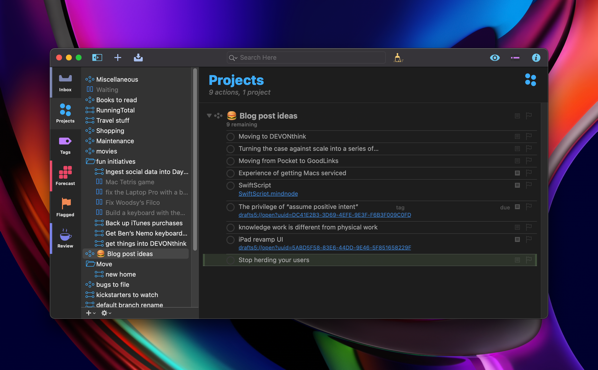
My Sweet Setup: DEVONthink

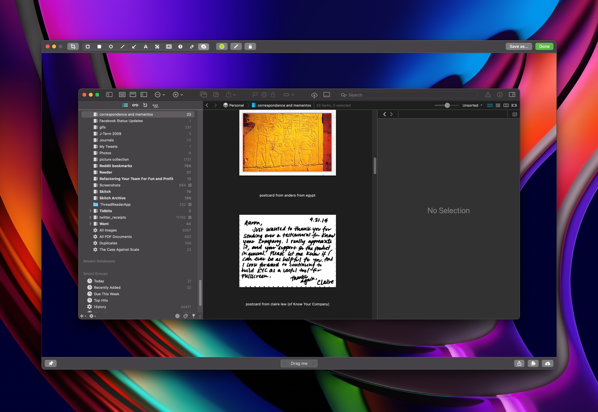
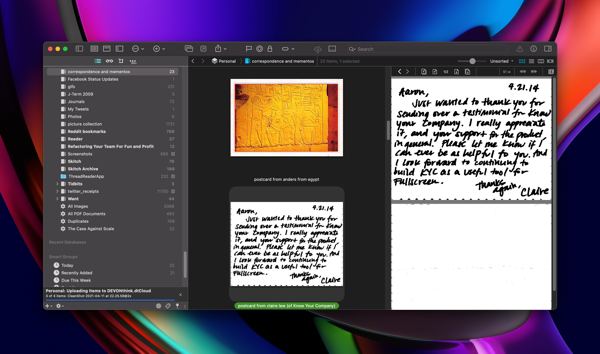
a screenshot of DEVONthink
About a year ago I made a big switch in my paperless life: I retired Evernote and decided to use DEVONthink instead. As my past posts might indicate, I was a hard-core Evernote user.

But DEVONthink is a far better values fit for me.

DEVONthink feels like someone made a Mac-only version of Evernote for its most die-hard power users.

DEVONthink respects you as a user. Using DT doesn’t tie you to a syncing cloud account. Your database is totally under your control. In fact, you don’t even have to have just a single database!

I use a few different databases for DT for myself. One is a business database that I put receipts and scanned paperwork into. Technical notes and learnings have their own database. And my personal database contains other random pieces of information I have clipped from the web and other places over the years.

Not being backed by a cloud service might make you think sync is no good, but in fact it’s super flexible! I can sync using a variety of cloud services, and I can pick and choose which databases I sync, and to which devices. For added privacy, I can encrypt my synced database so that Dropbox or iCloud don’t know the actual contents. And for the particularly privacy-minded, LAN sync is available.

It’s nice and very at home on the Mac, but it doesn’t feel super lightweight. Not that the app is slow or anything; it actually performs pretty well even as I look through big databases, but the interface itself is just quite heavy. It’s an app for power users after all. As such, it’s not my go-to app for general notetaking and entry of data (though you can certainly use it like that if you prefer). For that I’ll typically use Drafts or Bear and archive to DT.

But you can do incredible things with DT. It’s fully AppleScriptable. It integrates beautifully with other Mac apps. I can archive mailboxes from Mail into DT. I can have DT index folders for me, allowing me to keep my files where I’m used to, but still get the benefit of DT’s organizing and tagging.

DT is happy with any old file type; as long as your system has a Quick Look plugin for the file, you can see it in DT. That’s freeing because it means I am free to use the app I think is best for a job.

I use DT as a digital filing cabinet of sorts. I archive stuff into it with confidence that I can dig it up later.


Apr 14 2021

My Sweet Setup: TextMate 2

One of the most striking things about TextMate for me is just how long it’s been a part of my life. I’ve been using TextMate for almost 15 years now. TextMate has been with me through most of college, when as a poor college student I got it as part of the first MacHeist bundle. It’s been with me through my entire post-college life. I’ve used it to implement software and APIs for companies that have gone on to have billion-dollar valuations. I only just paid for an upgrade for it last fall when TextMate 2 was released out of beta. It’s even become open-source since I started using it.

If you know the editors out there you know TextMate is kind of a has-been. It pioneered a lot of new things, but I’m pretty sure we hit peak TextMate some time around 2010. Other editors have since then come along, and although TextMate 2 was released as a beta in 2011, users seemed to feel TextMate’s best days were behind it and they all moved onto other editors.

You might assume I’m still using TextMate out of stubbornnees or inertia, or maybe I didn’t even give other editors a fair shake. I have, in fact, tried to move full-time to other editors, but I keep coming back to TextMate. Not just because it’s familiar, but because it’s genuinely a great editor.

TextMate’s a native Mac app, which gives it a lot of points in my book. It somehow beautifully is able to feel at home both as a Mac app and as a hard core editor like emacs, supporting emacs bindings natively. Its UI feels very familiar as a Mac app, too. Whereas VS Code and Atom both stubbornly work as single-window apps thanks to the fact that they’re Electron apps, TextMate happily uses windows for everything. I don’t need split panes to see multiple files at once; I can just put a tab in its own window and I can put that new window wherever I damn well please!

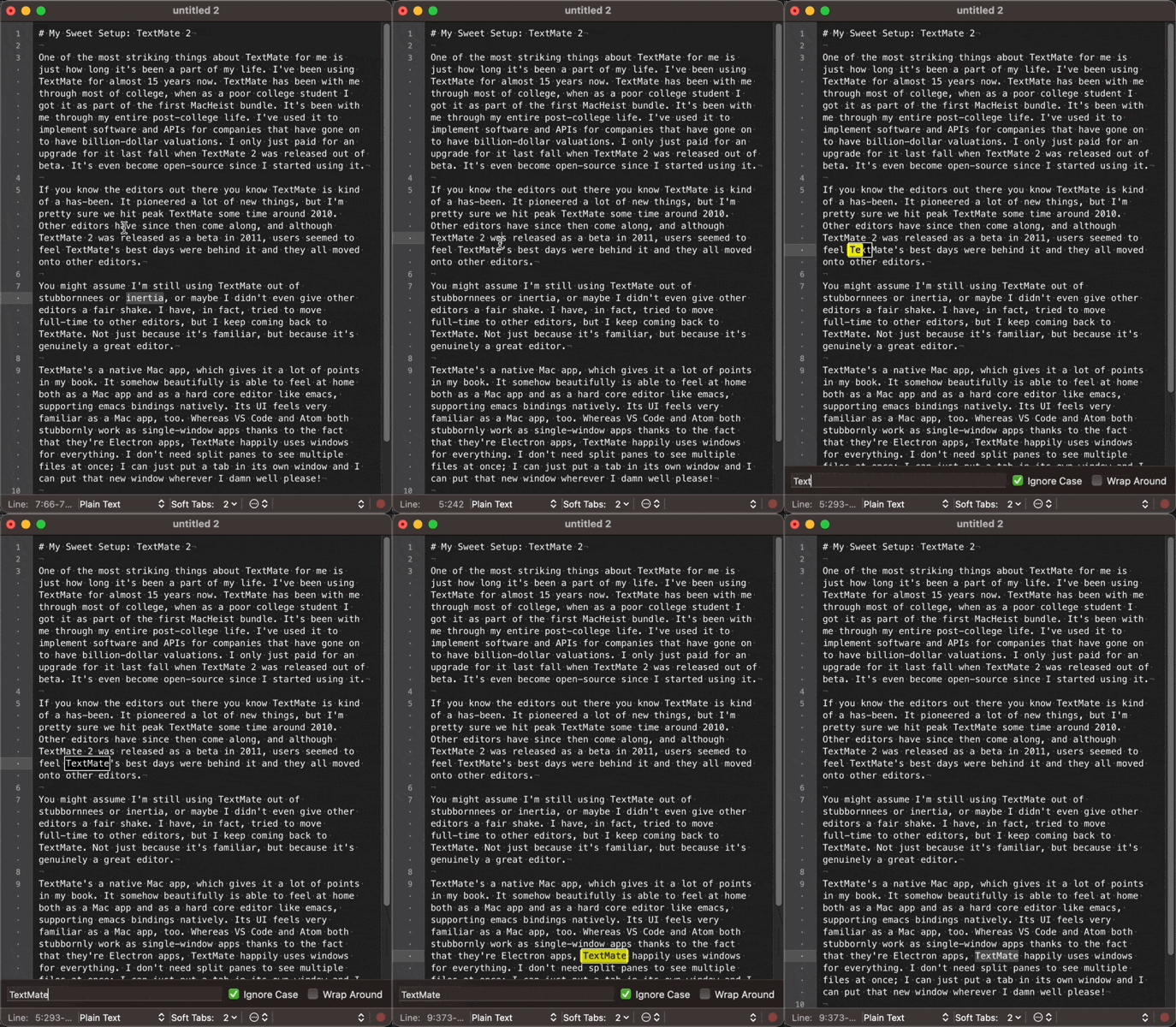
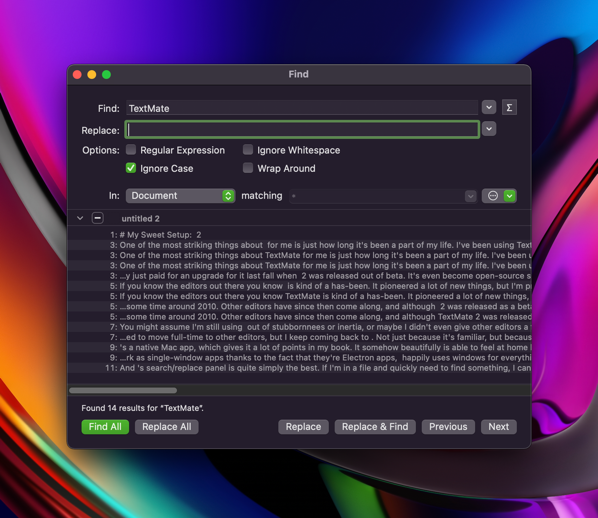
And TextMate’s search/replace panel is quite simply the best. If I’m in a file and quickly need to find something, I can simply ⌃S and a little text field will pop up at the bottom of the window allowing me to search.

an animation of me using TextMate's incremental search

But when I am ready to bring out the big guns, I use the powerful find/replace panel, which I have yet to find matched in another editor.

textmate's find/replace panel

It’s full of delightful details in a way that all good Mac apps are. If I’m currently searching for something with a regular expression, but I change the search field to something in my search history, and I wasn’t using regex for that item, it will automatically un-check “Regular Expression” for me.

When I want to tear through searching every file in a big project I can narrow down by folder and use a pattern match to just search specific file types or names.

TextMate has this deceptively simple, no-frills looking interface, but it packs an incredible amount of power, and that power never gets in your face until you need it.

I admit, TextMate’s glory days are probably long behind it, but TextMate’s never been about the spotlight. It’s just there for me, still fully supported and getting updates after all these years from MacroMates.


Apr 13 2021

My Sweet Setup: Office Chairs

I own a Herman Miller Aeron (size C, the biggest one), and an Embody (which comes in one size), and both are excellent.

There isn’t much I can say about the Aeron; it’s an iconic office chair design and if you walk into just about any VC-funded startup you are likely to see an Aeron somewhere. All around, it’s excellent. It’s sturdy (and offers a ten-year warranty to back that sturdiness), comfortable to sit on for long periods, and is available with a number of different adjustment options.

If you’re used to buying $100-ish office chairs from Target, the $1000-ish price tag might send you running, but assuming you sit in the chair full time, you’ll spend 20,000 hours in this chair in a decade, so once you stretch out the cost it’s quite good. Your office chair is an area where you don’t want to skimp on cost; cheap office chairs will either have suboptimal comfort, or lack durability (or both). A company I worked for outfitted our office with some Aeron knock-offs from Office Max. They were admittedly really nice chairs, but the controls and gas lift started acting up after a couple of years, and the chairs are probably all sitting in a landfill well within a decade.

The Embody is a similar story in terms of price (one can be had for around $1500 depending on your color choice and configuration) but it similarly is an excellent chair with a unique design. Its brochures and web site are full of marketing fluff (including a claim that it’s the only chair where your heart rate actually will drop when you sit in it, which I’ve never bothered to test), but the back of the chair is a fascinating characteristic: it has a spine!

The spine is the defining visual and functional feature of the Embody; when you sit down in it, your back feels beautifully accommodated because the spine of the chair conforms to the curvature of your own spine. It feels really good to stretch your back and also feel the spine of the chair adjusting right with it.

I’ve owned both chairs for about the same period of time, and the Embody chair has aged worse. The cloth it’s upholstered with more easily shows signs of wear, and I get squeaks out of the Embody (though in the chair’s total defense, I am a big dude and I’m pushing the limits of the chair’s weight limit). If the Embody were to fall apart on me, I’d probably buy another though, because it’s a great chair.

As an aside, I appreciate that Herman Miller’s chairs are American-made.

But chairs are a highly personal choice. Whatever you choose, get it from a reputable chair maker (ideally it’s got a 10 year warranty), and try out as many as you can. You’ll be spending a grand or more, but you’ll be glad you did.